Billing Portal Customer Guide
How to sign in, read your statement, pay early, and manage the bank account used for autopay in the TecAce Billing Portal.
- Autopay. Each invoice is charged to your bank account on its payment date.
- No extra cost. ACH bank transfer is free. TecAce covers the fee.
- Always available. Invoices, PDFs and receipts in one place, any time.
Version 1.7 · October 2026 · Questions: andrewyoo@tecace.com
Screens in this guide show a sample company. Your own names, amounts and dates will appear in their place.
How billing works#
You do not need to pay invoices by hand. The portal is where you see what is coming, what has been paid, and the documents behind it.
- You sign an agreement with TecAce. It sets what TecAce delivers, what it costs, and the day of the month you are charged.
- Three business days before the payment date, TecAce emails you a heads-up, "Upcoming invoice from TecAce", with the amount, the service period and the bank account to be charged. Your Statement shows it as coming.
- On the payment date, TecAce issues the invoice, dated that day, and emails it to your billing address and your CC addresses, with the invoice PDF attached. The email comes from TecAce Billing and its View invoice in the billing portal button opens that invoice here. It is charged the same day, automatically, to the bank account you saved in the portal. A bank transfer takes a few business days to settle.
- Stripe emails you a receipt once the payment has gone through. The receipt is also in the portal.
Signing in#
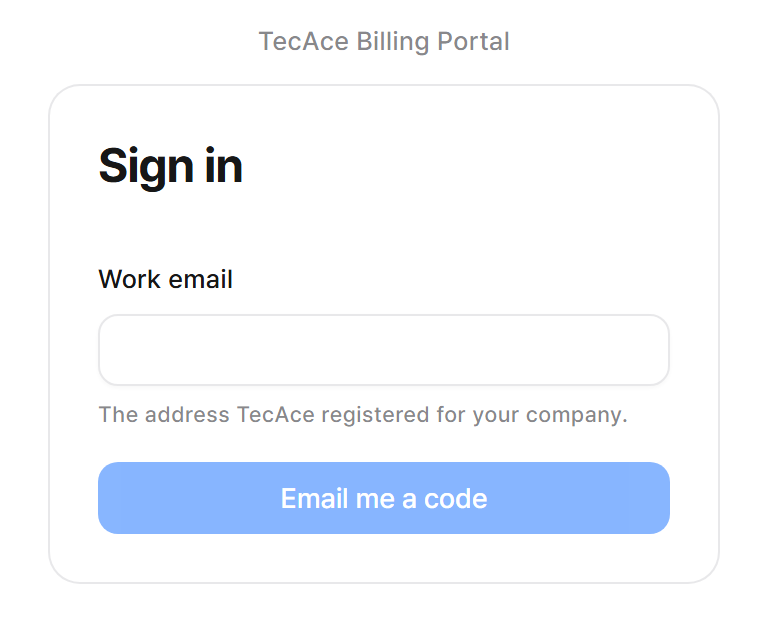
The portal has no password. You sign in with a one-time code sent to your work email.
- Go to billing.tecace.com and enter the work email TecAce registered for your company.
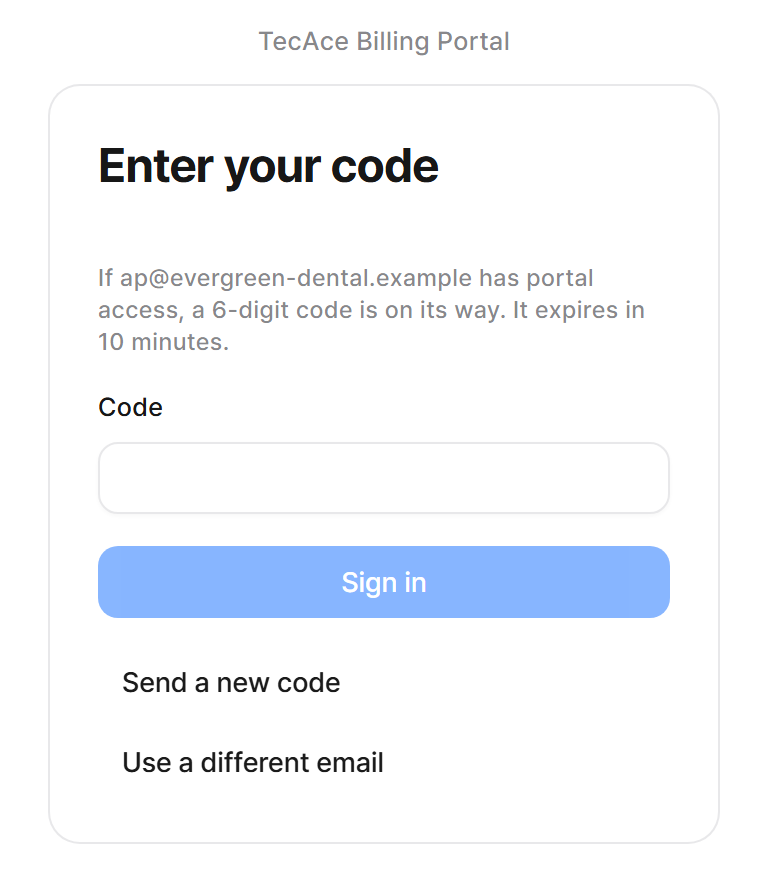
- Click Email me a code. A 6-digit code is emailed to you. It expires after 10 minutes.
- Enter the code and click Sign in.
The first time: portal terms#
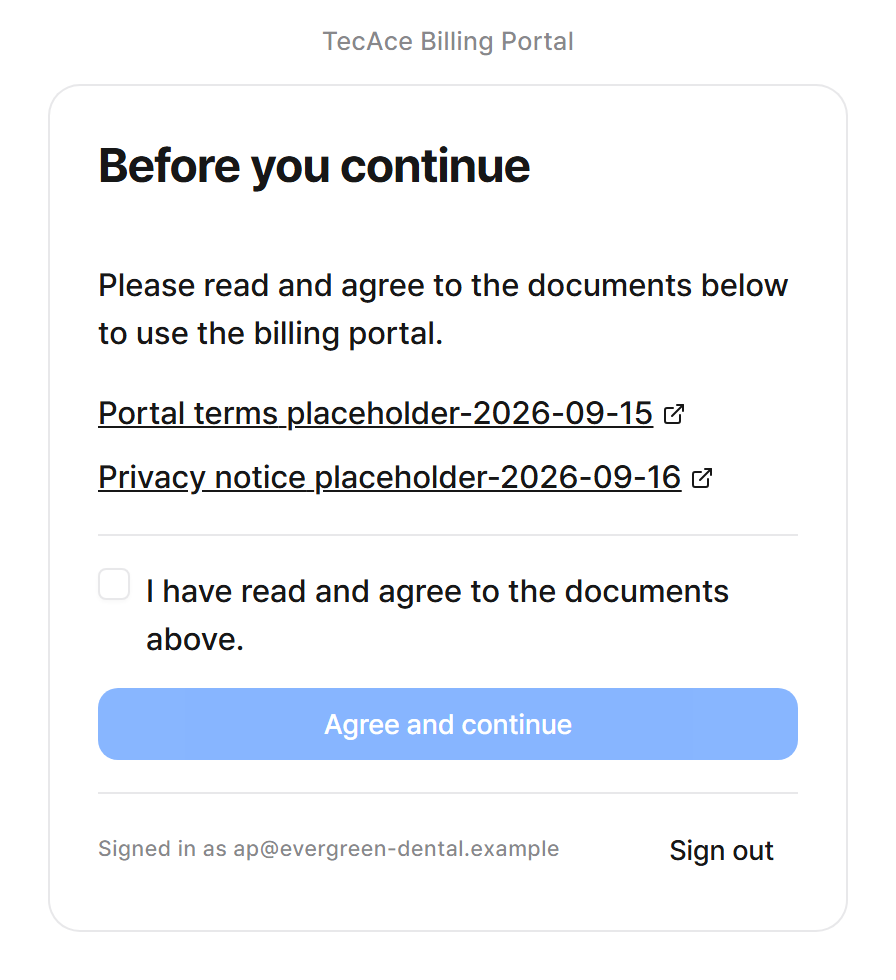
The first time you sign in, and again if the terms change, you are asked to read and accept the portal terms and privacy notice. Open each document, tick the box, and click Agree and continue.
For your security, the portal signs you out after an hour without activity. Just sign in again with a new code.
Every page has Privacy, Terms of use, Guide and Support links at the bottom. Guide opens this guide. The portal and all billing emails are in English.
Your statement#
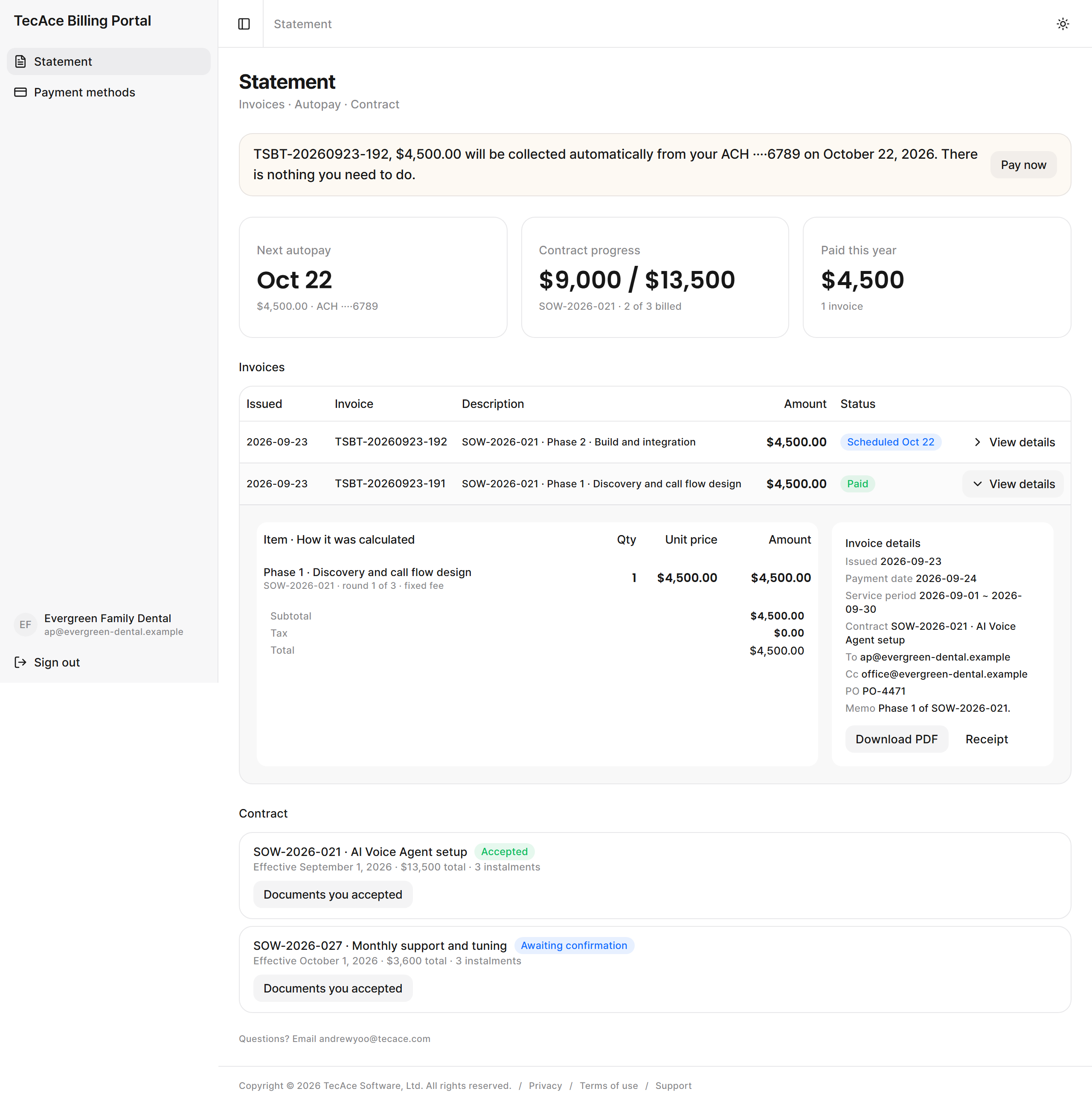
The Statement page opens first. It tells you what will be charged next, and lists every invoice.
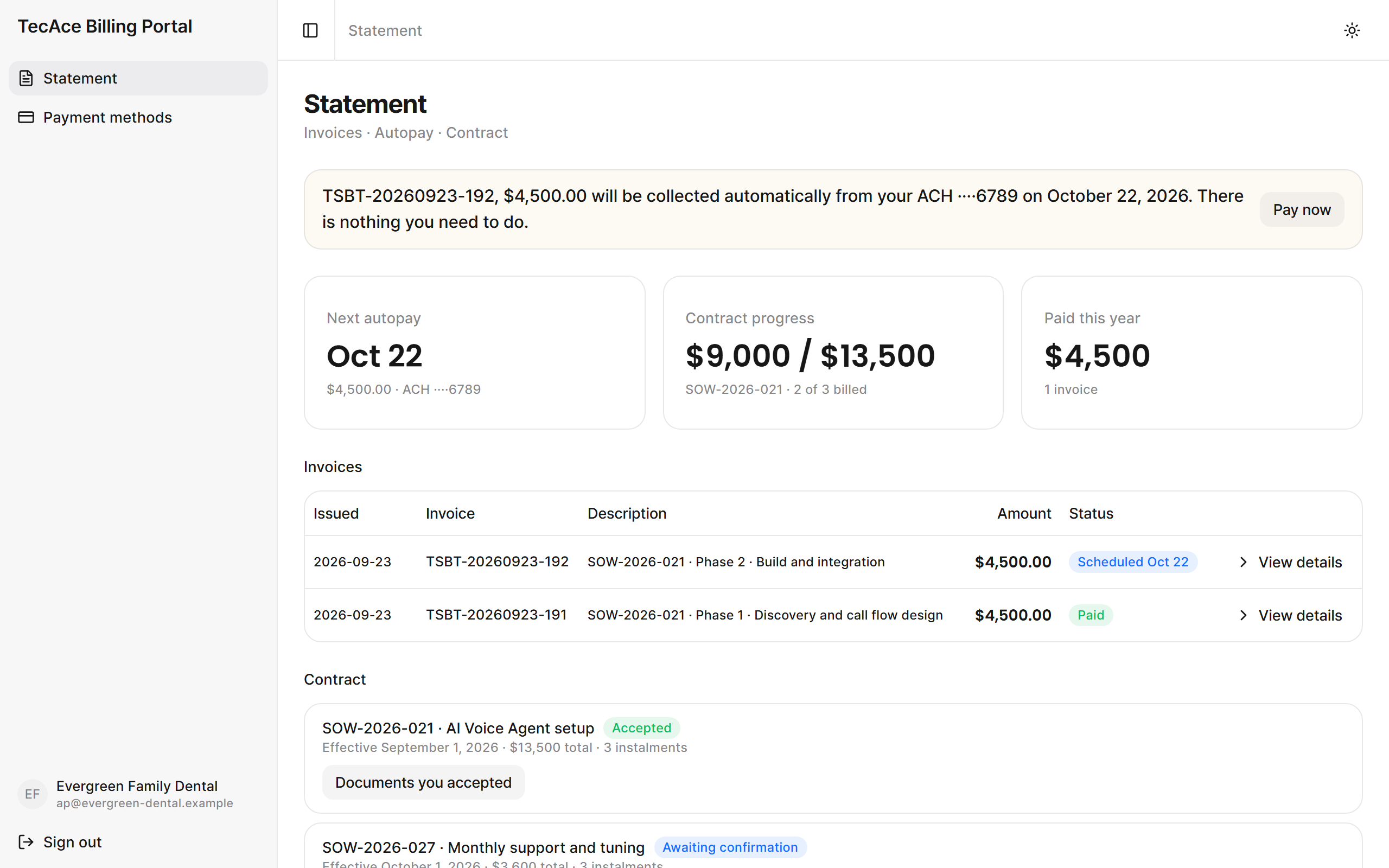
When the next thing is an invoice still to come, the first line says so: "An invoice of $190.00 will be issued and charged on October 1, 2026 to your ACH ····1234." It appears from the day of the heads-up email. It joins the invoice list when it is issued, on the payment date, and there is nothing to pay before then.
| Card | What it shows |
|---|---|
| Next autopay | The date of the next automatic payment, its amount and the account it comes from. |
| Contract progress | How much of your contract has been billed so far, and how many of its instalments. Shown only when your contract is billed in instalments. |
| Paid this year | The total you have paid this calendar year, net of refunds, and how many invoices it covers. |
Invoice status#
| Status | Meaning |
|---|---|
| Scheduled Oct 22 | Issued, and will be charged automatically on that date. Nothing to do. |
| Processing | A payment is on its way: the automatic charge on the payment date, a retry, or your own Pay now. A bank transfer takes a few business days to settle. Do not pay the invoice again while it shows Processing. |
| Paid | The payment has arrived. The receipt is available. |
| Awaiting bank verification | You paid with Pay now by typing in your bank account's numbers, and Stripe is waiting for you to verify the account with the code from its small deposit. Nothing has been taken and nothing has failed. Click Open Stripe's verification page under the status. |
| Overdue Oct 22 | The payment date has passed and the automatic charge has not been made yet. It is made shortly, and you can also use Pay now. A payment that is on its way shows Processing, not Overdue. |
| Payment failed · retrying Oct 25 | The charge did not go through, or your bank returned it. It will be tried again on the date shown, or right away if you connect another bank account. |
| Payment failed | All three attempts failed, and it will not be charged again automatically. Use Pay now, or TecAce will contact you. |
| Refunded Partially refunded | Money was returned to you, in full or in part. |
| Voided Written off | Cancelled by TecAce. Nothing more will be charged for it. |
Invoice details, PDF and receipt#
Click View details on any row to see the line items and how each amount was calculated, the tax, the payment date, the service period and the addresses the invoice was sent to.
- Download PDF saves the invoice for your records.
- Receipt appears once the invoice is paid.
Paying early with Pay now#
You never have to pay by hand. Pay now is there if you prefer to pay an issued invoice yourself, or to settle one whose automatic charge failed.
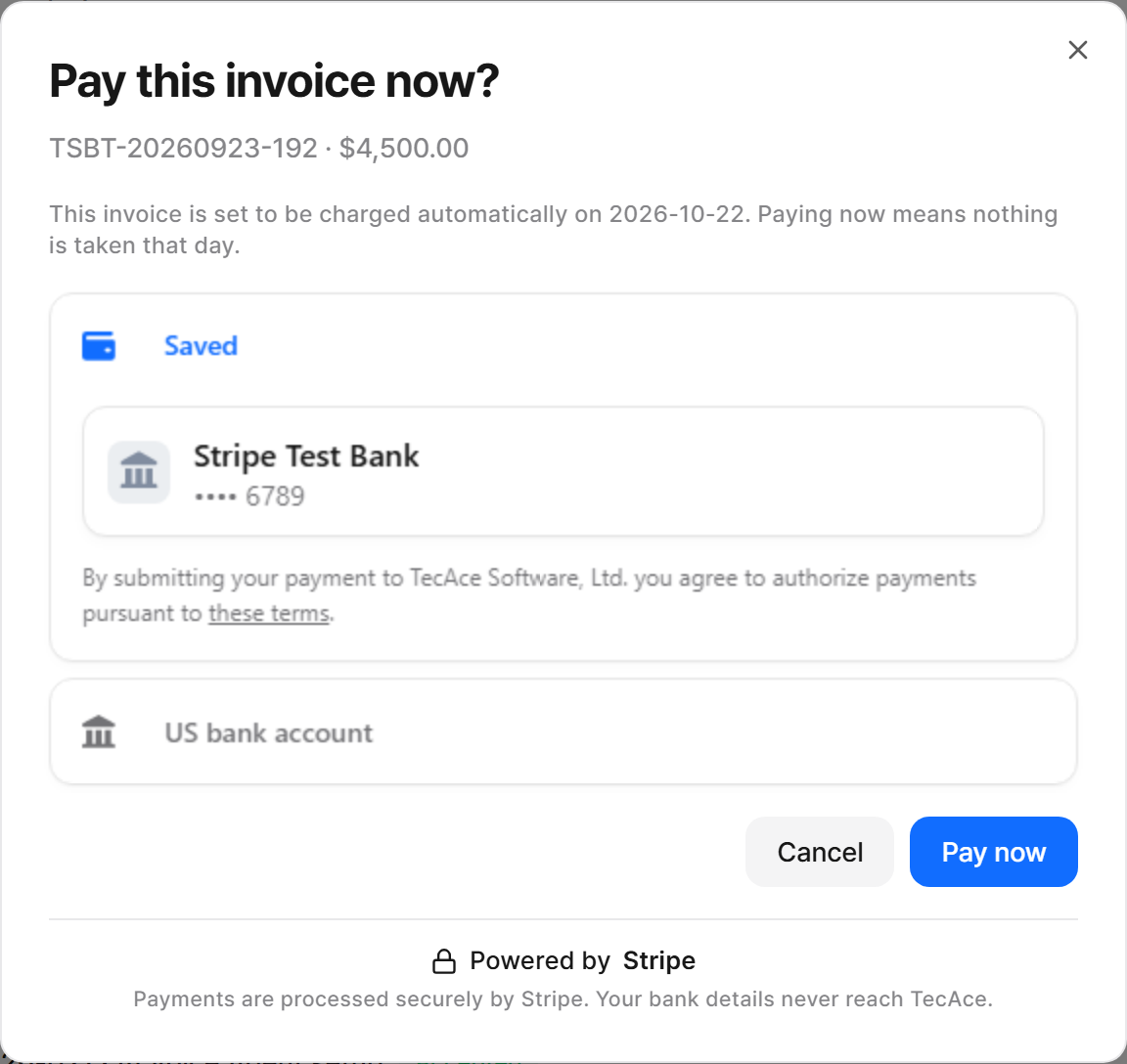
- On the Statement page, click Pay now next to the first line.
- In the Pay this invoice now? window, check the invoice number and amount, choose your saved bank account, and click Pay now.
Once card payments are open (see Credit and debit cards), you can also choose a card in the window for an invoice under $1,000. For an invoice of $1,000 or more the window offers a bank account only, and says so above the form.
If you pay by typing your routing and account numbers instead of choosing a saved account, Stripe may first need to verify that account with a small deposit. The portal then says so, with a link to Stripe's verification page. Nothing is taken from the account until it is verified. Until then the invoice shows Awaiting bank verification, with the same link under it. While it waits, the invoice is not charged on its payment date with your payment method on file. If you would rather pay another way, Pay now is still there: paying with another method replaces the payment that is waiting, and you are not charged twice. If the account cannot be verified (the deposit could not be sent, too many wrong codes, or the 10 days passed), we email you: nothing was taken, the invoice is still unpaid, and you can pay it with Pay now or let it be charged with your payment method on file.
Right after you pay, the portal shows a red notice: "The bank transfer has started." A bank transfer settles in a few business days, and the invoice then shows Paid. Do not pay the same invoice again in the meantime.
Your bank account for autopay#
Autopay needs one saved bank account. You add it once, on the Payment methods page.
Adding your bank account#
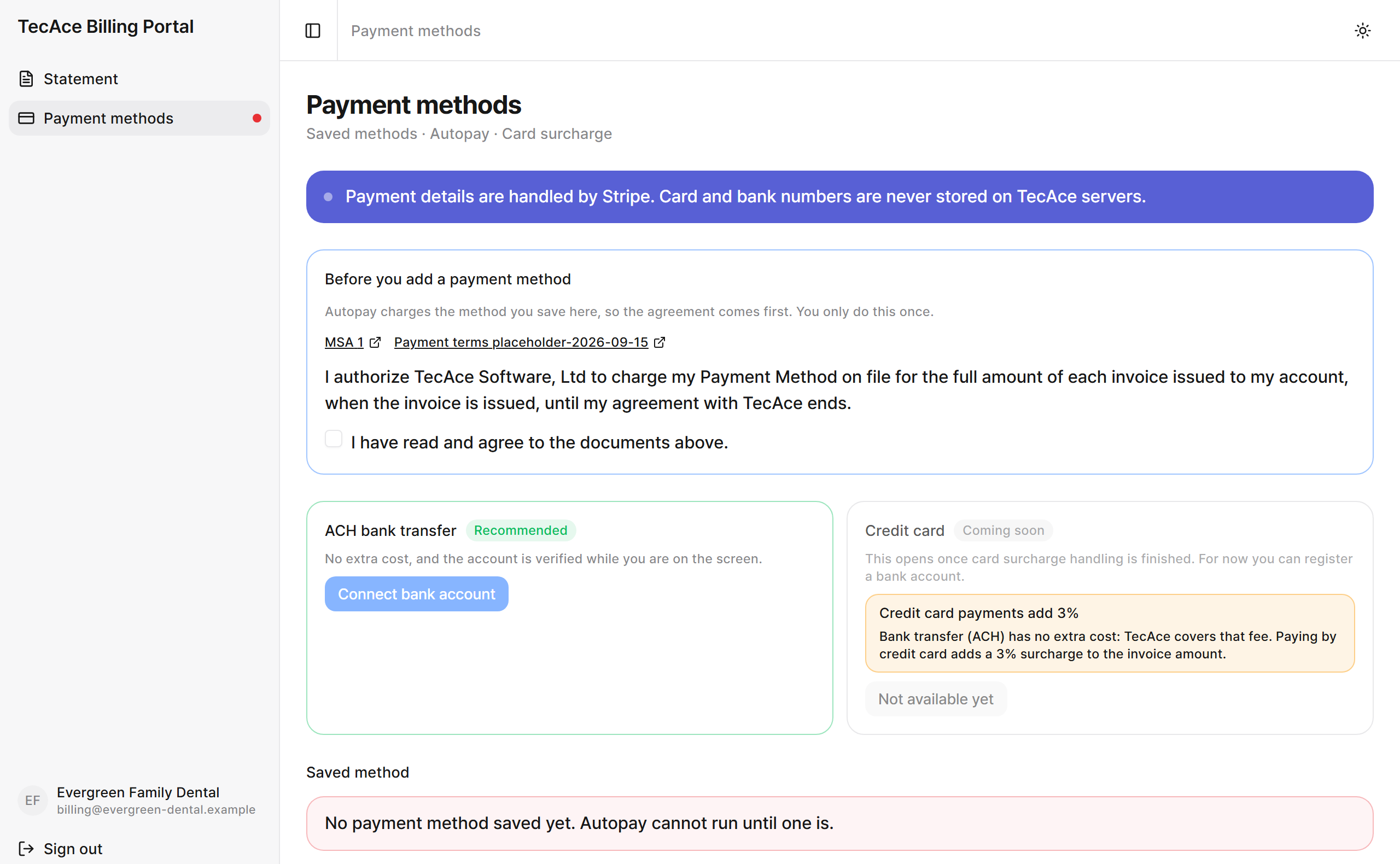
- Open Payment methods from the menu. A red dot beside it means no payment method is saved yet.
- Under Before you add a payment method, read the MSA and payment terms, then tick I have read and agree to the documents above. You only do this once.
- On the ACH bank transfer card, read the autopay authorization in bold just above the button, then click Connect bank account. Clicking it gives that authorization for the account you connect. The Add a payment method window opens with Stripe's secure form.
- Choose your bank and sign in to it, or enter your routing and account numbers. Signing in to your bank verifies the account on the spot.
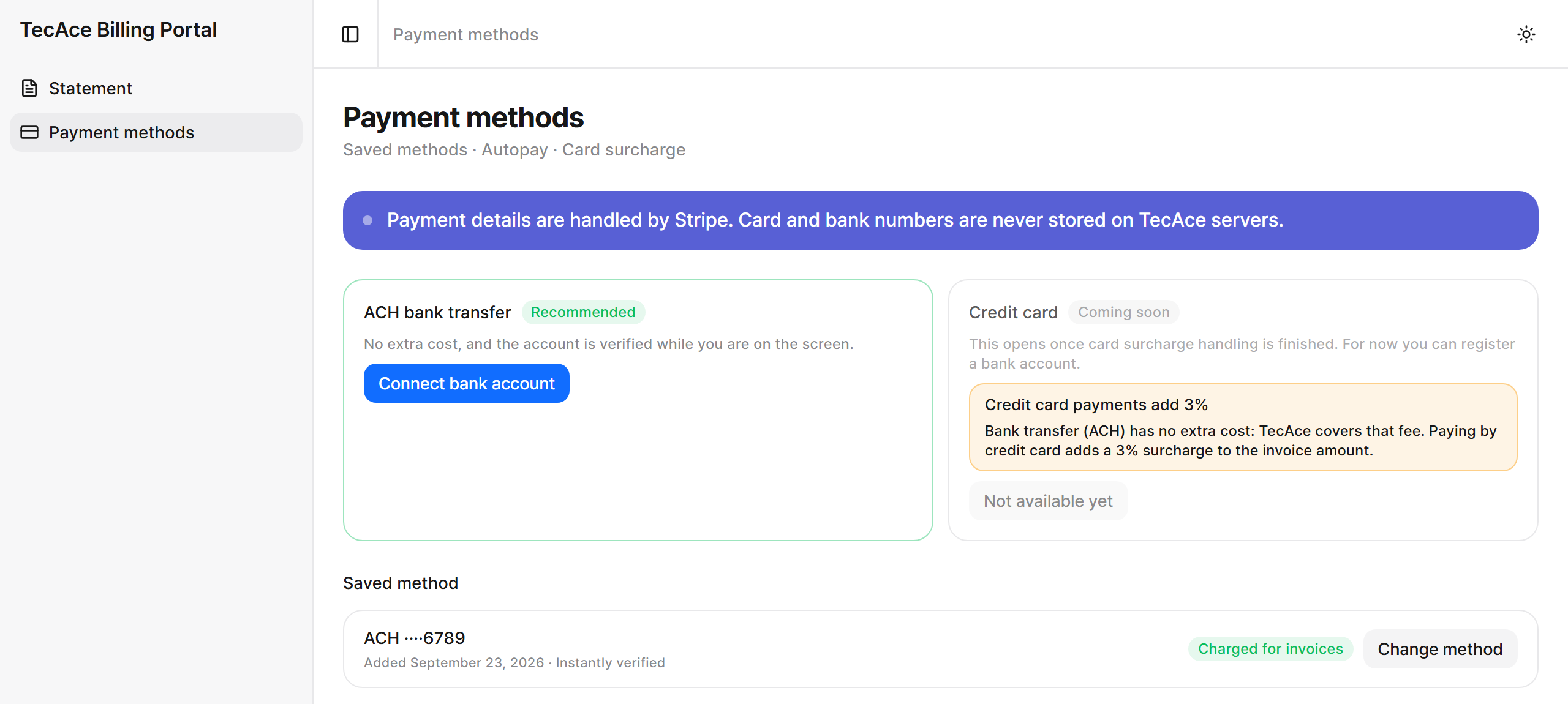
- Click Save bank account. The account appears under Saved method, marked Charged for invoices: it is now the method your invoices are charged to.
If you entered the numbers yourself, Stripe may need to verify the account first (see the next section).
Once the account is saved, we email you a copy of the authorization you gave: the exact words, who is paid, for which company, the account, when you gave it and when the account was saved, and how to revoke it. Please keep it for your records. To revoke it, remove the payment method yourself on the Payment methods page (see Removing a payment method below), or reply to that email or write to support. Either way the payment method is removed so it is no longer charged, and we confirm by email; your invoices are still due, and you can add a payment method again at any time. If it was the payment method your invoices were charged to and you have others saved, we do not pick one for you: nothing is collected automatically until you click Use for invoices beside one of them, or add a new one.
When Stripe needs to verify your bank account#
When the account cannot be verified on the spot, Stripe verifies it with a small deposit. The page then shows Verify your bank account, and the account is not saved until you finish.
- Within 1 to 2 business days a $0.01 deposit arrives in the account. Its description holds a 6-character code starting with SM. (Some banks get two small deposits described ACCTVERIFY instead.)
- Click Open Stripe's verification page on the Payment methods page. Stripe usually emails you the same link.
- Enter the code, or the two amounts.
You have 10 days to verify. After that, or after too many wrong tries, connect the account again. If that happens, or if Stripe could not send the deposit, we email you: nothing was charged to the account, and the email says what your invoices are charged to now and how to add the account again. Signing in to your bank when you add it verifies it at once.
Once verified, the account appears under Saved method. It becomes the method charged for invoices, unless you chose another payment method after you started adding it. In that case your choice stays, we email you that the account is saved, and you can switch to it with Use for invoices (below).
Changing your bank account#
On the ACH bank transfer card, click Connect bank account and connect the new account the same way. The documents are not asked again, but the autopay authorization is shown above the button every time: each bank account you connect is authorized on its own, and you get a copy for each. Once it is saved, the new account replaces the old one for future charges.
A saved payment method cannot be edited. To change one, click Replace beside it: the page points you to Connect bank account or Add a card above, and once the new method is saved it asks whether to remove the old one.
Removing a payment method#
- On Payment methods, click Remove beside the method.
- Read what removing it does, then click Remove to confirm, or Keep it to change nothing.
- If it is not the method marked Charged for invoices, nothing else changes.
- If it is, and you have other saved methods, nothing is collected automatically until you click Use for invoices beside one of them, or add a new one. Until then, please pay each invoice from the Statement by its payment date.
- If it is your only payment method, nothing can be charged automatically until you add a new one.
- The method disappears from the list, and we email you a confirmation.
Removing a method also withdraws the autopay authorization you gave for it, and cannot be undone: to use it again, add it again, which asks you to authorize it again. Invoices already issued are still due. A method with a payment in progress (a bank payment takes up to 4 business days) cannot be removed until that payment has finished; the page says so. A bank account still waiting for Stripe's verification is not saved yet, so there is nothing to remove: if it is not verified within 10 days, it is dropped.
Choosing which saved method is charged#
Only the method marked Charged for invoices is charged. To charge another saved method instead, click Use for invoices beside it. Nothing is charged when you switch: an unpaid invoice is tried again on its next retry day, or you can pay it at once with Pay now on the Statement.
Credit and debit cards#
Card payments open when TecAce turns them on. Until then the Credit card option shows Coming soon, and bank transfer (ACH) is the way to pay.
When the option shows Credit or debit card with an Add a card button, you can use a card for autopay instead of a bank account:
- If Before you add a payment method is shown, read the documents and tick the box first.
- Read the autopay authorization in bold just above the button, then click Add a card. Clicking it gives that authorization for the card you save, and you get a copy by email. Enter the card in Stripe's form and click Save card. The card becomes the method charged for your invoices, in place of the one before.
- Beside the saved card, the page shows whether it is a Credit card or a Debit card.
To go back to your bank account, click Use for invoices beside it.
Cards are for invoices under $1,000.
- Paying by card costs nothing extra, the same as a bank transfer.
- A card can pay an invoice whose total, tax included, is under $1,000. An invoice of $1,000 or more is paid from a bank account only.
- If a card is your payment method and an invoice is $1,000 or more, it is charged to your saved bank account instead. If no bank account is saved, the invoice is not charged until you connect one: the email three business days before the payment date and the invoice email both say so, and the Payment methods page asks you to connect one.
- For an invoice of $1,000 or more, Pay now offers a bank account only.
Can I turn off autopay?#
No. The Autopay box shows On · Stays on until cancellation. The service is provided on a subscription basis, so autopay stays on while your contract is active. To stop it, cancel the contract: cancellation is monthly with no penalty, and you are billed only for what has already been delivered. As the Autopay box says, contact TecAce at andrewyoo@tecace.com to cancel your service.
Documents you accepted#
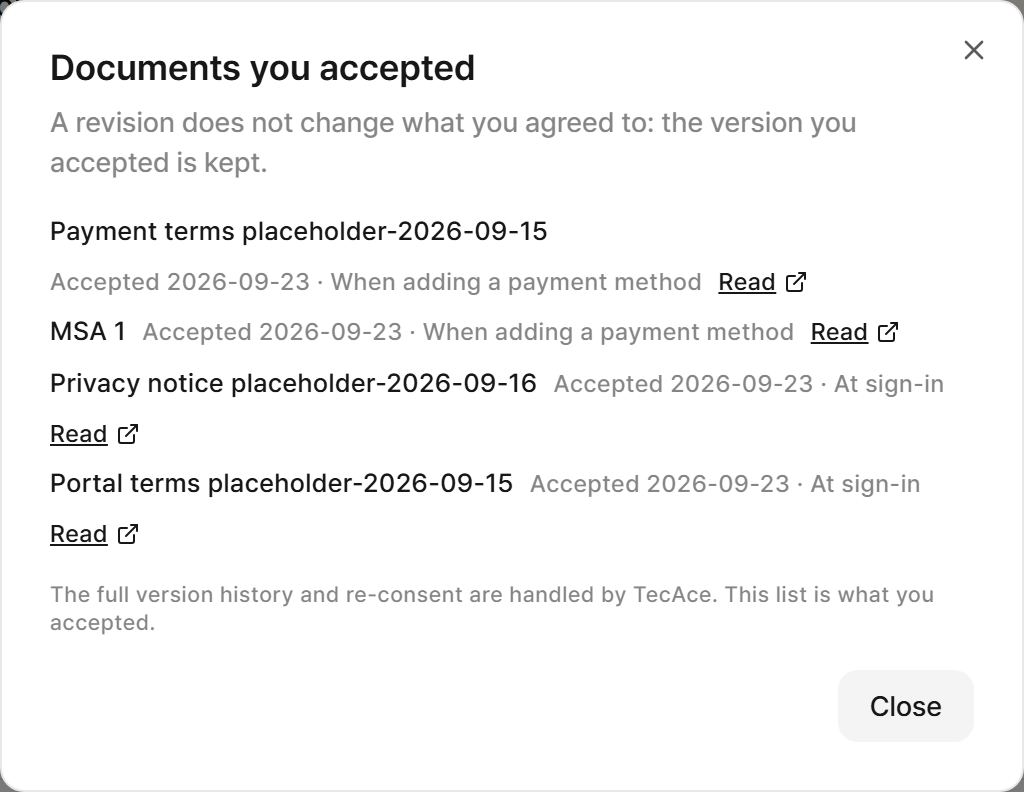
Every document you agreed to is kept, in the version you accepted.
At the bottom of the Statement page, under Contract, click Documents you accepted. The list shows each document, when you accepted it and where (at sign-in, or when adding a payment method). Click Read to open it. Where TecAce has attached the contract document, the Contract button beside it opens it.
Frequently asked questions#
When is my account charged?#
On each invoice's payment date, shown on the invoice, in the first line of your Statement and in the Next autopay card. If your contract's day of the month falls on a weekend or bank holiday, the payment date is the next business day. A bank transfer then takes a few business days to settle.
Will I get the invoice by email?#
Yes. Three business days before the payment date, TecAce emails you that it is coming. On the payment date, TecAce emails the invoice, dated that day, from TecAce Billing (appmarket@tecace.com), to your billing address and your CC addresses. The subject names the invoice number, the amount and the payment date, and the invoice PDF is attached.
The email's View invoice in the billing portal button opens that invoice on your Statement. If you are not signed in, you sign in first and land on the invoice. If no bank account is on file yet, the email also has a small pay online link to Stripe's payment page, which needs no sign-in. You can also download the invoice from the portal at any time.
Will paying by card cost more?#
No. Cards and bank transfer (ACH) cost nothing extra. A card can pay invoices under $1,000; larger invoices are paid from a bank account. See Credit and debit cards.
Where is my receipt?#
Stripe emails a receipt once the payment has gone through. It is also under View details → Receipt on the paid invoice.
My Pay now says it is waiting for bank verification. Did it fail?#
No. You typed in your bank account's numbers, so Stripe sends a small deposit to check the account is yours. Enter the code from it on Stripe's verification page (linked on the invoice) within 10 days, and the payment starts. Nothing is taken until then, and the invoice is not charged on its payment date while it waits. If you do not verify in time, or the account cannot be verified, nothing is charged and we email you; the invoice is then charged with your payment method on file, on its payment date or, if that has passed, the next day, unless you pay it first with Pay now.
What if a payment fails?#
Stripe emails you about the failed payment, and TecAce is notified. The invoice shows Payment failed · retrying with the next attempt date. The charge is tried again 3 and 5 days after the payment date, three attempts in all. A bank transfer that your bank returns counts as a failed attempt, even if it first showed Processing.
To settle it sooner, check that your bank account is valid or connect another one on the Payment methods page: the invoice is then charged right away, as its next attempt. Or use Pay now. If the third attempt also fails, the invoice shows Payment failed, it is not charged again automatically, and TecAce will contact you.
Can someone else in my company use the portal?#
Yes. Ask TecAce to register their work email. Each person signs in with their own email.
Is the portal available in other languages?#
No. The portal, invoices, receipts and billing emails are in English.
Why does the portal sign me out?#
For your security, after an hour without activity. Sign in again with a new code.
How do I cancel?#
Contracts can be cancelled monthly with no penalty. Contact TecAce, and you will be billed only for what has already been delivered.
Questions? Email andrewyoo@tecace.com, or use the Support link at the bottom of any portal page.
TecAce Software, Ltd. · 840 140th Ave NE, Bellevue, WA 98005